- Course Overview: LeaderGuide Pro Fundamentals
- Module 1: Introduction
- Lesson 1 : What LeaderGuide Pro Does
- Lesson 2: How LeaderGuide Pro Works
How LeaderGuide Works
Need to Know Information for Users
Understanding how LeaderGuide Pro operates is your key to success
LeaderGuide Pro transforms Word into a powerful tool for building Instructor-led Training.
LeaderGuide Pro utilizes smart templates and specialized code to:
-
Automate the creation of facilitator guides and participant guides
-
That are professionally formatted and logically structured
-
To support Instructor-Led Training (ILT) and Virtual Instructor-Led Training (VILT).
And LeaderGuide Pro guides you with cognitive prompts to:
-
Focus your workflow and
-
Free you to focus on content
-
As it populates the smart templates for you, based on your input.
"Word on Steroids"
When you start a new Facilitator Guide or Participant Guide with LeaderGuide Pro:
-
You end up with a "Word on steroids" starting point document.
-
It is set up with the LeaderGuide Pro smart templates, styles and formatting.
Work WITH what you are given:
-
Every page and every element in your new guidebook is there for a reason.
-
And Word's formatting marks are turned on for a reason.
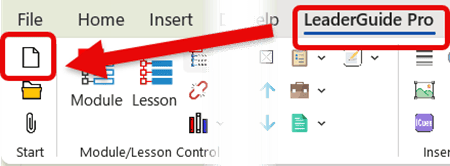
Keep the LeaderGuide Pro ribbon showing along the top of your screen.
-
Always use LeaderGuide Pro rather than Word.
-
Only use Word if LeaderGuide Pro cannot perform the function you need.
- For instance, you will use Word to Save your work.
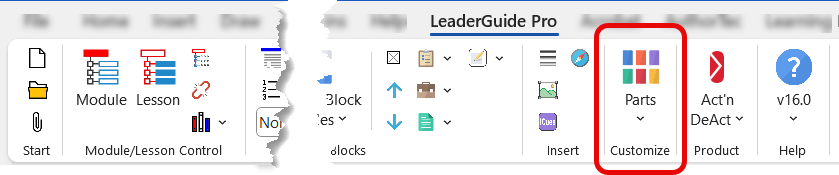
The LeaderGuide Pro Ribbon

Keep this ribbon showing as you work in your Facilitator Guides and Participant Guides.
Hover
Hover your cursor over a ribbon button to:
-
See a screen tip
-
Telling you what the button does for you.
Groups
The ribbon buttons are grouped by functionality.
-
Each button automates a specific work task that would otherwise require:
-
More time, and
-
Advanced knowledge of Word to perform.
-
Tips for Success
Best Practices as you Get Started
Look through your new document page by page and leave everything in place.
Make notes about anything you want to customize or remove.
-
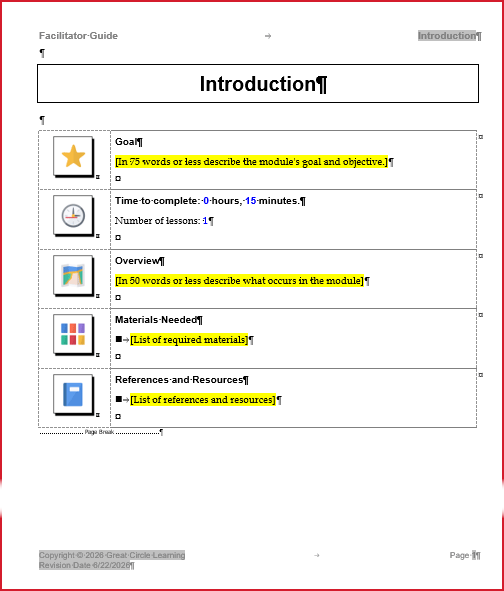
On your first Module Overview page simply type over the highlighted prompts.
-
This page is just an overview to help your facilitators prepare for the instruction they are about to deliver.
-
Don't get distracted by the colored text and formatting marks.
Adding Instructional Content
The first Lesson in your first Module is where you start adding your instructional content.
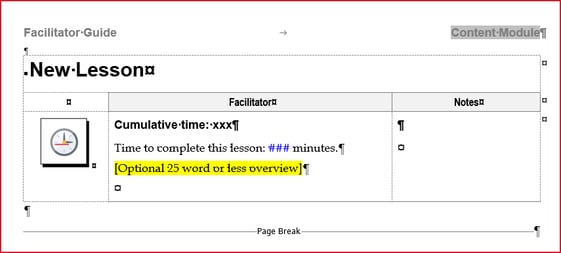
The Lesson page is built with a Table.
-
We refer to the table rows as Content Blocks.
-
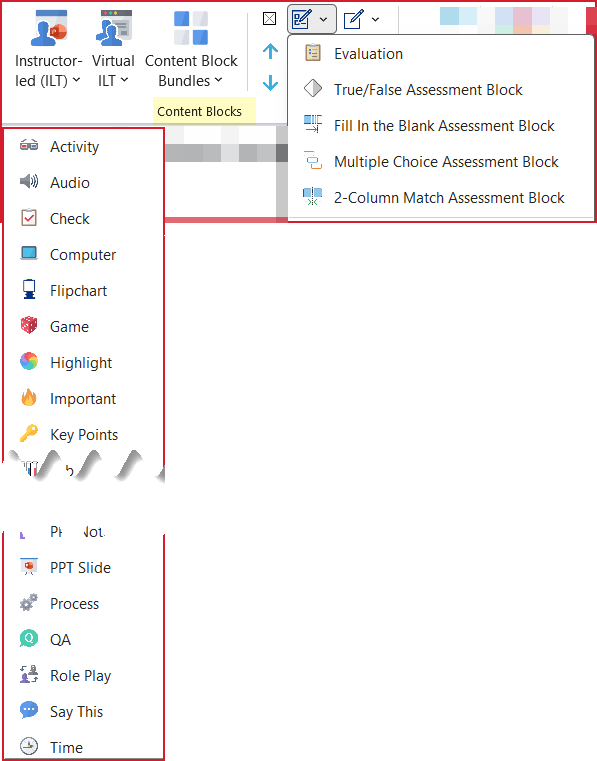
Content Blocks always start with an icon to serve as a visual cue, and are ALWAYS added from the LGPro ribbon.
-
You add text and images into cells 2 & 3 of the Content Block.
Cursor Placement
-
To add a Content Block, place your cursor in the Time block.
-
Click on the Instructor-led (ILT) Content Blocks button on the LeaderGuide Pro ribbon & click on a Content Block.
-
The Content Block will appear just below the Time Block on your Lesson page.
-
Leave your cursor in that Block when you are ready to add the next block.

Here are a few of the many "behind the scenes" moving parts working on your behalf as you use LeaderGuide Pro
Brand Elements
-
Logos, cover pages, copyright, headers, footers, icons, style guides
Customizable Collections
-
Dedicated aspects of the guidebook templates where you can input custom text and images without affecting the master layout and functionality of the software
Dynamic Smart Fields
-
Placeholders that automatically pull data from special styles to populate key areas of the guidebooks
-
For example: The Program Name on the Cover page automatically populates in various locations within the document.
Wizards & Dialog Boxes
LeaderGuide Pro regularly:
-
shares information about what it is doing
-
asks questions, and
-
provides guided options to automate the work tasks necessary to build your facilitator and participant guides
Logic-based Rules
The logic used to determine which sections and elements are included - such as:
-
Whether a facilitator guide or a participant is created.
-
The overall look and feel - by virtue of the Collection selected.
-
Whether PowerPoint is included - and where slides are placed on the lesson pages.
What this means for YOU
You will be saving a lot of time and producing more professional training materials.
Select an option below:
- Always Do This
- When to Use Word
- Use LeaderGuide Pro to Do This
Use LeaderGuide Pro to:
-
Start a new guidebook - use the New button
-
Open an existing guidebook - use the Open button
-
Add Modules and Lessons - use the Module and Lesson buttons
-
Reorder, Delete or Archive Modules and Lessons - use Librarian
-
Paste content copied from other sources - use the Paste Special button
-
Add a Content Block - use the Content Block buttons
-
Delete/remove a Content Block - use the Delete Table Row button
-
Add bullets or numbered lists
-
Use the Bullet>Promote>Demote buttons
-
And the Number>Promote>Demote>Restart List buttons
-
Import PowerPoint slides and notes
-
Import images and chunks of content from other documents
-
Resize slides and other images
When to use Word vs. LeaderGuide Pro
Use Word to:
-
Access the LeaderGuide Pro ribbon and use the software
-
Save the documents you create with LeaderGuide Pro
-
Print or view the guidebooks in Print Preview mode
-
Type in or delete text within a Content Block
-
Copy and paste content copied from within a guidebook
AVOID using these Word functions
-
Undo and Redo
-
Because most LeaderGuide Pro tasks involve multiple steps (that happen so fast that you don't see them) while Undo and Redo only address the very last action, which is usually not enough.
-
-
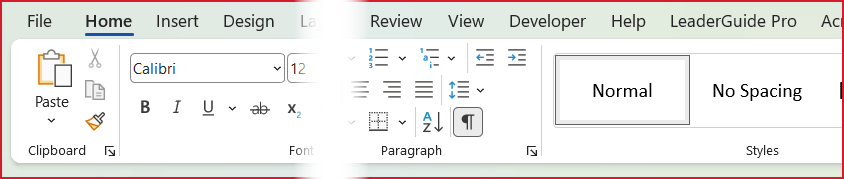
Font, Paragraph and Styles
-
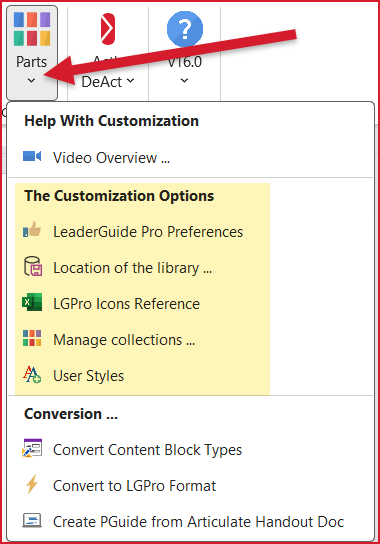
To make these types of changes, use the LeaderGuide Pro Customization wizards to create a Custom Collection.
-
By creating a Custom Collection you only have to make the changes ONCE and then simply use your custom Collection and this ensures that the LeaderGuide Pro functionality remains intact.
-
Always Start from LeaderGuide Pro
When you need a new Facilitator Guide, click New on the LGPro ribbon.
-
You don't need to open a copy of an old document.
-
If you have existing content you want to use, LGPro provides a number of ways to make it easy to repurpose content:
-
Use Librarian to Archive and Insert Archived Modules & Lessons
-
Use Attach to apply a new Collection to an an existing guidebook
-
Use Insert Images & text Objects to pull in content from other documents.
-
Formats & Styles
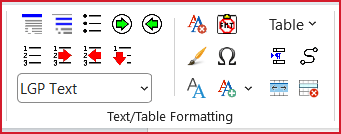
Use the buttons n the Text/Table Formatting group to:
-
Apply LGPro styles
-
Insert bulleted and numbered lists
-
Allow a Content Block to flow over multiple pages
-
Merge or split Content Block cells
-
Paste in content from other documents
-
Add special tables
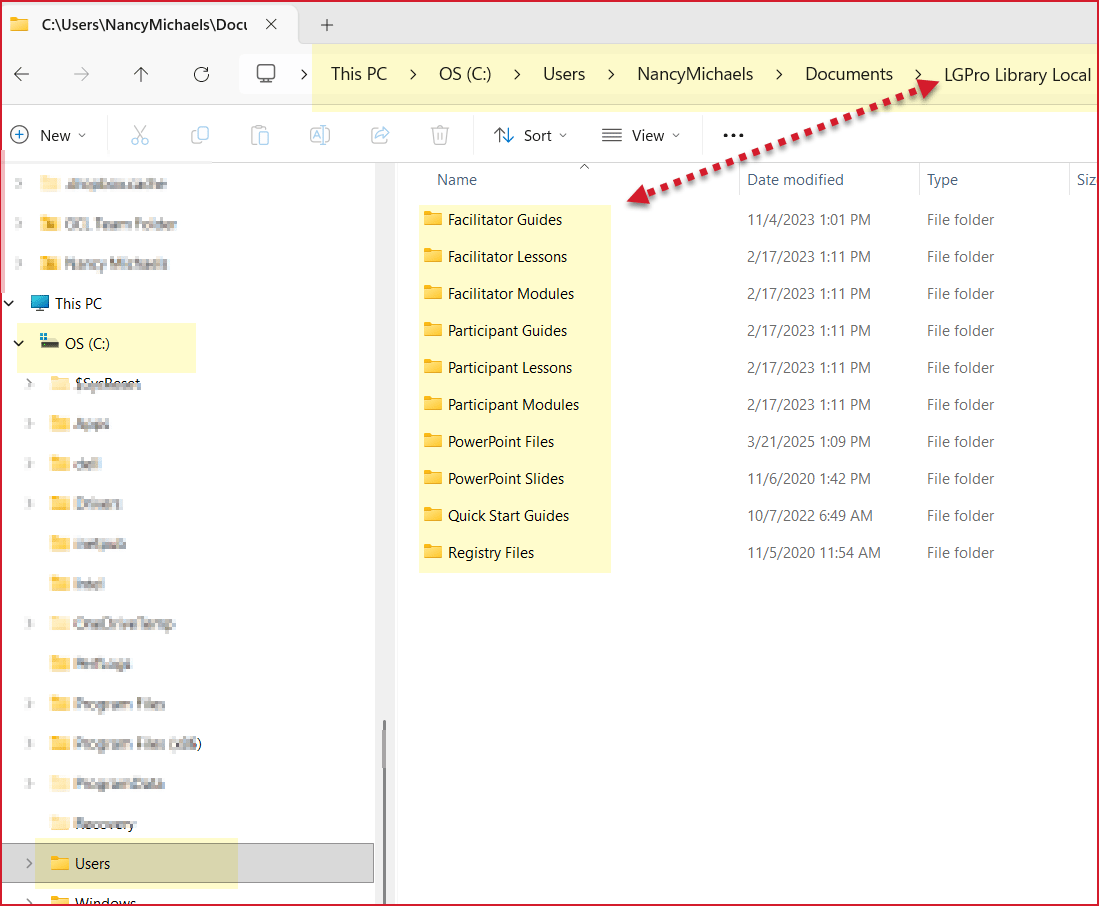
To do it's work, LeaderGuide Pro relies on coding embedding into many of the LGPro Styles.
Set Your Preferences
Click Parts > LeaderGuide Pro Preferences to:
-
Make customizations that will apply to all new guidebooks you create, like
-
Add your logo
-
Set up your Copyright information
-
Set how you want slides to be numbered
-
And more
-
Rather than falling back on Word habits:
-
Use the page layouts in the facilitator and participant guides as provided
-
Use the styles and formatting as provided
-
Use the icons and graphic instructional cues as provided
-
Follow the document structure and page layout conventions
-
Always insert Content Blocks from the LeaderGuide Pro ribbon
-
Work with Word's formatting marks turned on
Share Mindfully
-
Always keep master copies of your LeaderGuide Pro documents.
-
Only share copies of your LeaderGuide Pro documents with non-users.
-
Make sure all document contributors and editors understand the software.
Create Custom Collections
-
Start by using LeaderGuide Pro as provided, to get to know and understand how the software helps you work more productively.
-
Then ... Leverage the included customization functions to ensure your LeaderGuide Pro guidebooks meet your branding and corporate requirements.
-
LeaderGuide Pro is highly customizable and using the LeaderGuide Pro Customization wizards ensures that your changes will not impact the software's functionality.