Create consistent, professionally formatted Facilitator Guides and Participant Guides.
To support Instructor-Led Training (ILT) and Virtual Instructor-Led Training (VILT).
Multiple contributors using different styles of writing, organizing and lay out
Varying levels of expertise in Word and PowerPoint, the base programs used to create ILT
Difficulty editing, revising, maintaining and repurposing materials
No consistent standards for document structure, organization, layout, voice, graphics
Unrealistic development timeframes and budget
Do the bulk of your work once, in your master document (Facilitator Guide)
Enable the ability to sync content changes from one guidebook to another
Enable the ability to sync Participant Guide page number references into the Facilitator Guide
Ensure consistency
Logo
Colors
Fonts
Formatting
Icons
Graphics
Legal Notices
Default Text
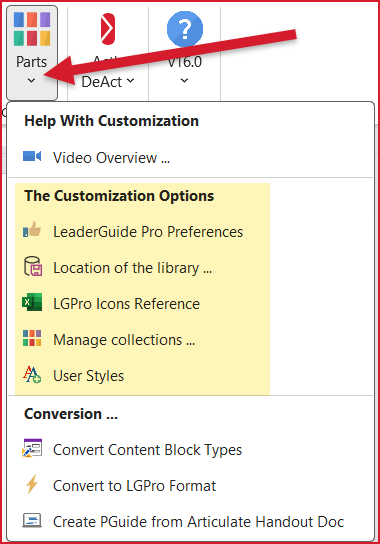
Customize the LeaderGuide Pro smart templates to meet your brand requirements
Share your custom templates with everyone on your team
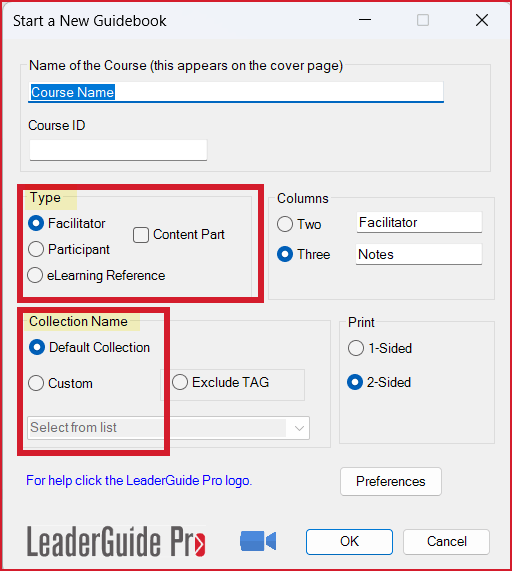
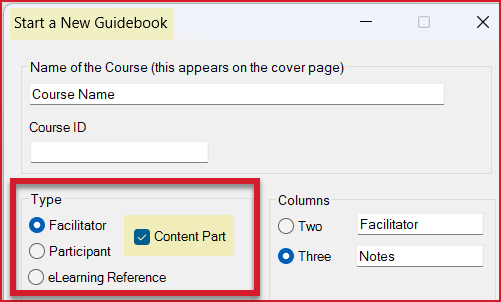
Build consistently structured Facilitator Guides and Participant Guides
Apply a professionally formatted Style guide
Allows you to focus on content while LeaderGuide Pro handles formatting and page layouts.
Your Facilitator Guides and participant materials are structured and formatted consistently, no matter who creates them.
Work at least 50% faster because so much of the formatting and page layout work is automated.
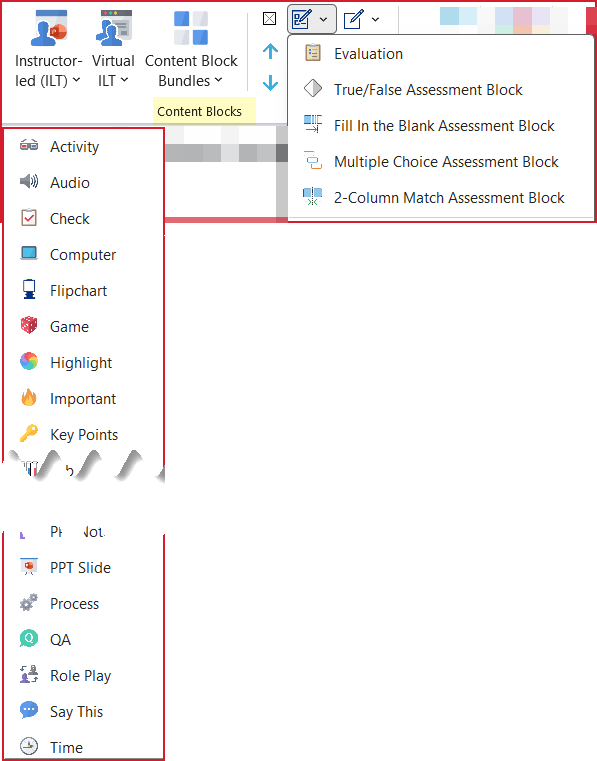
Insert icons to visually cue Facilitator actions like Say, Do, Ask, Key Points, etc.
Consistently chunk content to make it easy for the Facilitator to manage during the live delivery
Build extractable Assessments, Case Studies and Handouts
Your Lesson pages are visually easy to follow
Your Content Blocks provide at-a-glance guidance
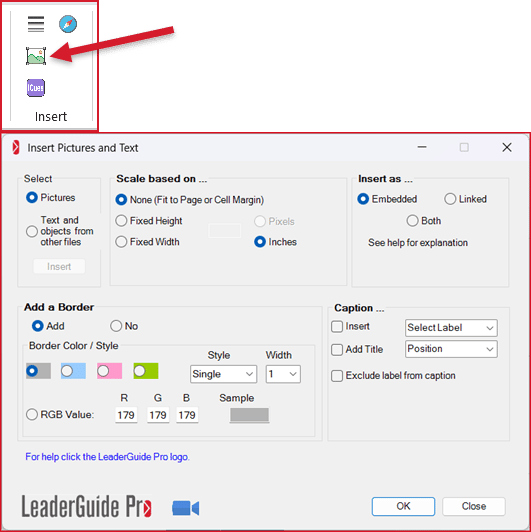
Import, anchor, label and properly size image files
Import multiple images at once if needed
Import text and objects from other Word documents
Move through a document to mark and import multiple excerpts at once if needed
Saves time
Eliminates headaches
Ensures consistency
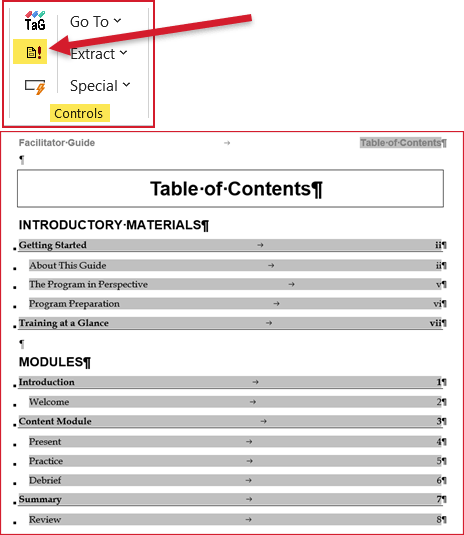
Add to and update the Table of Contents that LeaderGuide Pro automatically includes in every Guidebook
Saves time - all you have to do is click a button
Builds a professional Table of Contents that you can navigate from
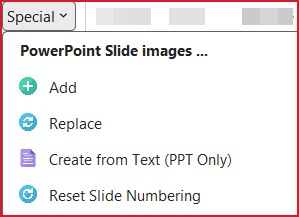
Import PowerPoint slides
Import PowerPoint notes
Import PowerPoint slide text
Replace PowerPoint slides
Create PowerPoint slides from within a Facilitator or Participant
Saves time - no more copying and pasting
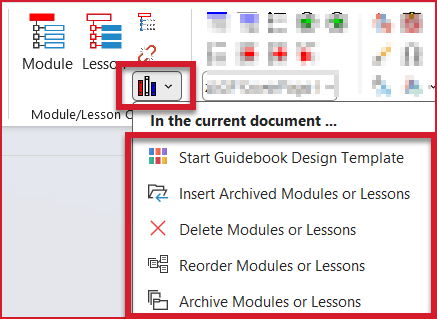
Create stand-alone Content Parts (Modules and Lessons)
Once built out, use Librarian to insert these saved Modules and Lessons into the full guidebook.
Your reusable Parts are automatically structured and formatted consistently, no matter who creates them.
This handles one of the big problems in projects with multiple developers.
Working in a portion of the overall facilitator guide allows you to work in smaller file, which can eliminate headaches.
Archive Modules and Lessons from existing Guidebooks (save a copy)
Insert Archived Modules and Lessons into other Guidebooks
Reorder Modules and Lessons
Save Course Outlines for reuse in New Guidebooks
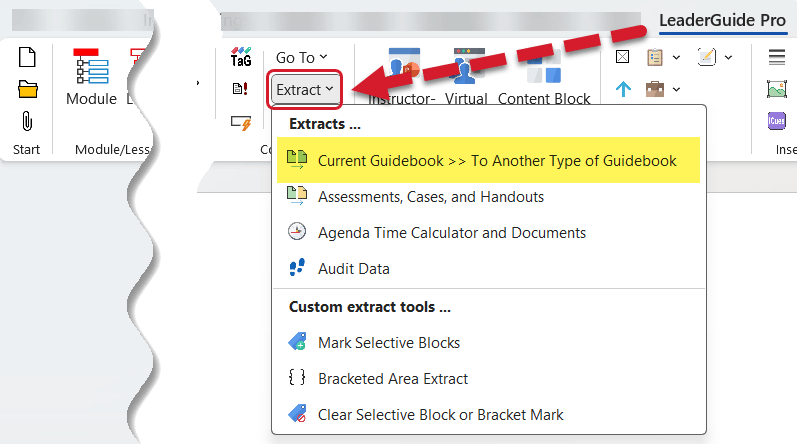
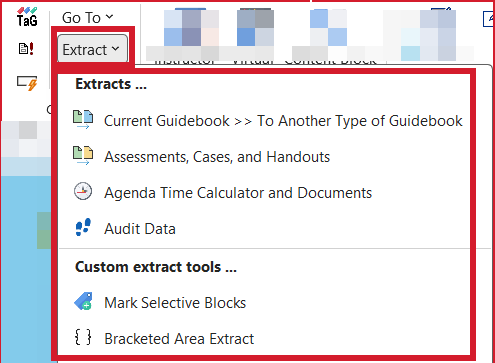
Extract Case Studies
Extract Handouts
Extract Assessments
Extract Timed Agendas
Extract portions of text and images
Attach a new Collection to an existing Guidebook to apply a different look and feel
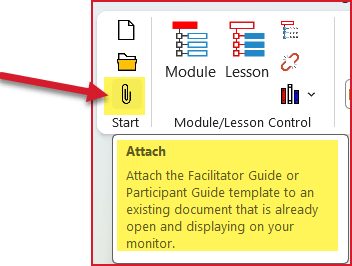
Attach a Collection to a new, blank Word document to begin creating Modules and Lessons