Software Management, Free Trial
How to Download & Install Learning Design Tool
Need help installing Learning Design Tool? This article covers the download and installation process so you can start building learning design documents and training plans with confidence.
|
NOTE: Learning Design Tool must be installed on your computer. It is not cloud-based. |
Getting Started
-
Make sure Microsoft Word is closed on your system
-
Download Learning Design Tool to your computer by completing the form
-
Choose 64-bit or 32-bit download
-
Click here to tell which version you need
-
-
Go to your Downloads folder and look for either:
-
LearningDesignTool4x64Installer
-
LearningDesignTool4x32Installer
-
-
Click on the install file to add Learning Design Tool to your computer
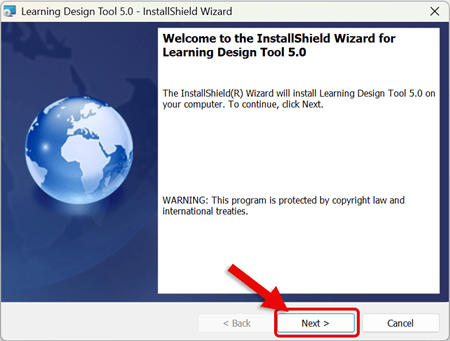
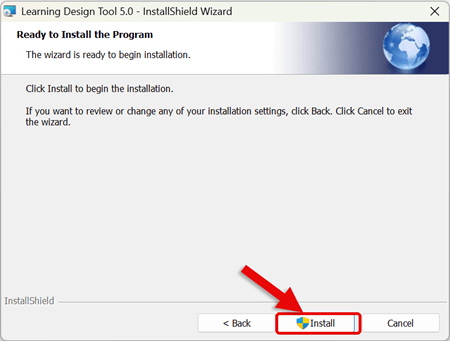
Follow the Prompts on the Installation Wizard.
-
Click Next to start the installation process
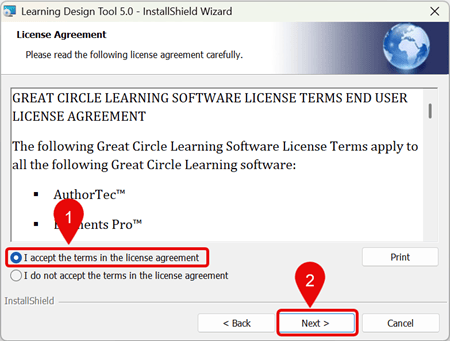
- Read and Accept the Terms of the End User License Agreement (EULA)
- Click Next
-
Click Install
-
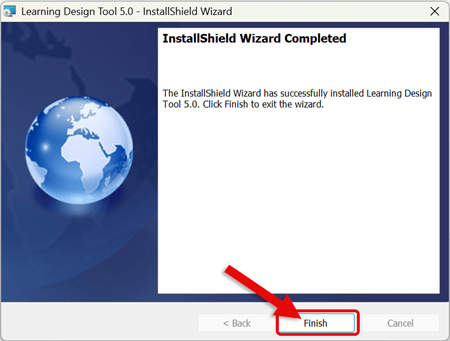
Click Finish to close out the Installation Wizard
-
Learning Design Tool is now installed on your computer.
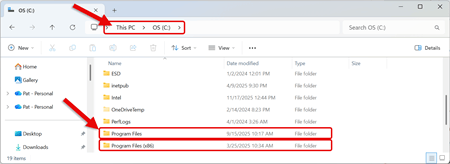
How to tell if I need the 64-bit or 32-bit install file:
|