


Features
Using the Attach Feature to Update an Existing Document
The Attach feature is commonly used when your organization updates branding, modifies style guidelines, introduces a new Collection, or needs to standardize existing guidebooks and Content Parts.
The Attach feature allows you to connect an existing LeaderGuide Pro document to a different Collection or reattach it to an updated version of the same Collection. This is a quick way to apply updated text styles, icons, headers, footers, and other Collection-based elements without rebuilding the document from scratch.
The Attach feature is commonly used when your organization updates branding, modifies style guidelines, introduces a new Collection, or needs to standardize existing guidebooks and Content Parts.
Before You Begin
Before using the Attach feature:
-
Open the existing LeaderGuide Pro document you want to update.
-
Ensure the desired Collection is installed and available.
-
Save and close any unnecessary Word documents.
-
Plan to save the updated document under a new name to preserve the original version.
| Tip: Attach is often used to update only the Collection while leaving the actual content of the document unchanged. |
Attaching a Collection to an Existing Document
Step 1: Open the Attach Feature
-
Open the existing LeaderGuide Pro document.
-
Go to the LeaderGuide Pro ribbon.
-
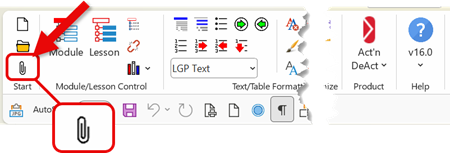
In the Start section, click Attach (paperclip icon).
Step 2: Review the Document Specifications
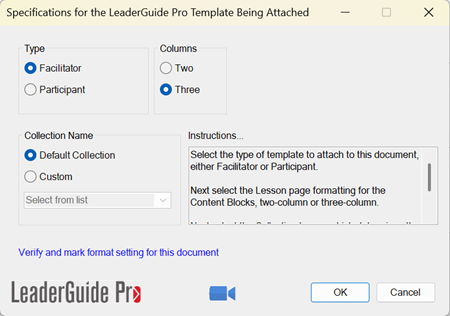
The Specification for LeaderGuide Pro Template Being Attached dialog box appears.
The dialog box automatically populates with the settings currently associated with the document, including:
-
Document Type
-
Facilitator Guide
-
Participant Guide
-
-
Column Structure
-
Two-column
-
Three-column
-
-
Collection used to create the document
Step 3: Make Any Desired Changes
Modify any of the document settings as needed.
In most situations, the only change being made is the Collection.
To change Collections:
-
Select the Custom radio button.
-
Choose the desired Collection from the drop-down list.
Step 4: Start the Attach Process
Click OK.
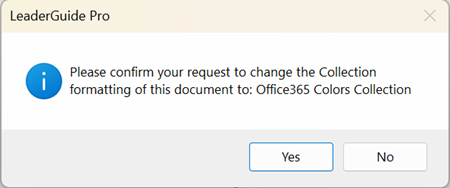
If you selected a different Collection, a confirmation message appears asking you to verify the Collection change.
Click Yes to continue.
Step 5: Save the Updated Document
You will be prompted to save the document under a new name.
This is an important step because it preserves:
-
The original document
-
The newly updated version
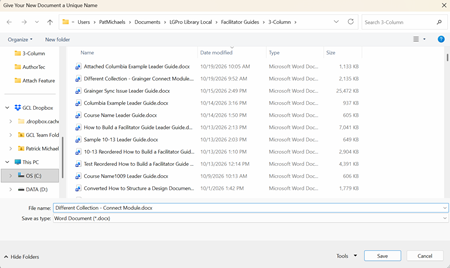
| Best Practice: Include the Collection name or version number in the filename so it is easy to identify the updated document later. |
Attach Prompts for a Content Part
When attaching a Collection to a Content Part, two update prompts appear.
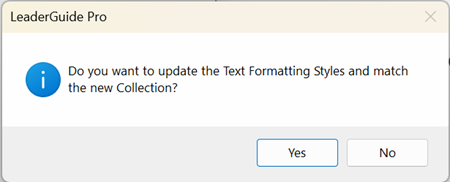
Text Formatting Styles
A dialog box asks whether you want to update the document's Text Style Guide.
Select Yes if you want to:
-
Apply the text styles from the selected Collection
-
Update fonts
-
Update font colors
-
Update font sizes
-
Update spacing and formatting
Select No if you want to:
-
Keep the existing text styles in the document
Block Icons
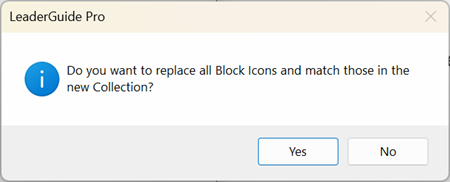
A second dialog box asks whether you want to update the Block Icons.
Select Yes if you want to:
-
Replace the existing column-one icons
-
Use the icons from the selected Collection
Select No if you want to:
-
Keep the current icons in the document
Attach Prompts for a Guidebook
When attaching a Collection to a Guidebook, four update prompts appear.
Text Formatting Styles
This prompt controls whether the document adopts the Text Style Guide from the selected Collection.
Click Yes to:
-
Update fonts
-
Update colors
-
Update sizing
-
Update spacing
-
Apply other Collection text formatting standards
Click No to:
-
Keep the current text styles
Block Icons
This prompt controls the icons used in the first column of the guidebook.
Click Yes to:
-
Replace existing icons
-
Use the icons from the newly attached Collection
Click No to:
-
Keep the current icons
Update Graphic Cues Page
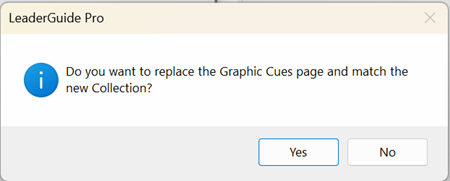
This prompt determines whether the Graphic Cues page should be updated.
Click Yes to:
-
Generate a new Graphic Cues page
-
Reflect any icon changes made during the Attach process
Click No if:
-
Icons were not updated
-
You have a customized Graphic Cues page that you want to keep
Headers & Footers
This prompt controls whether the document adopts the headers and footers from the selected Collection.
Click Yes to:
-
Replace existing headers
-
Replace existing footers
-
Use the Collection's current header and footer design
Click No to:
-
Keep the existing headers and footers
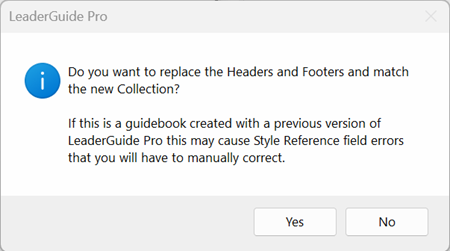
| Note: If the document was created with an earlier version of LeaderGuide Pro, you may receive a StyleRef field error after updating headers and footers. If this occurs, the field references may need to be corrected manually within the document. |
Completing the Process
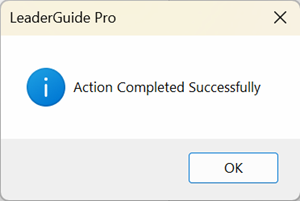
When the Attach process finishes, the Action Completed Successfully dialog box appears.
-
Click OK.
-
Review the updated document carefully.
-
Verify that any selected updates were applied correctly.
-
Save the document.
What Should I Review After Attaching?
After completing the Attach process, review:
-
Fonts and formatting
-
Block icons
-
Graphic Cues page
-
Headers and footers
-
Cover page appearance
-
Page layout
-
Course title references
-
Table of contents
-
Overall branding consistency
This final review helps ensure the document reflects the desired Collection settings and that no unintended changes were introduced.
Troubleshooting
My fonts changed unexpectedly.
You likely selected Yes for the Text Formatting Styles update. Reopen the original document if you need to preserve the previous text styles.
My icons changed.
You selected Yes for the Block Icons update. The document now uses the icons from the attached Collection.
My Graphic Cues page no longer matches my document.
Run the Attach process again and choose the appropriate option for updating the Graphic Cues page.
I received a StyleRef field error.
This can occur when updating Headers & Footers in documents created with earlier versions of LeaderGuide Pro. Review the header and footer fields and correct the references manually if necessary.