


Features
Using the Attach Feature on an Existing Word Document
Learn how to use the Attach feature to give an existing Microsoft Word document LeaderGuide Pro capabilities.
Overview
The Attach feature allows you to take an existing Microsoft Word document and enable it to work with LeaderGuide Pro. Once attached, the document gains access to LeaderGuide Pro functionality, including modules, lessons, content blocks, and other content-building tools.
This is especially useful when you have training content originally developed outside LeaderGuide Pro and want to convert it into a guidebook that uses LeaderGuide Pro's features and structure.
When to Use This Feature
Use the Attach feature when you:
-
Have an existing Word document that was not originally created with LeaderGuide Pro
-
Want to add LeaderGuide Pro functionality to the document
-
Need to insert modules, lessons, or content blocks into existing content
-
Plan to convert legacy training materials into a LeaderGuide Pro guidebook
Before You Begin
Before attaching a document, ensure:
-
The Microsoft Word document is open.
-
You understand whether the document should become a Facilitator Guide or Participant Guide.
-
You know which collection to use for the guidebook.
| Important: After attaching a document, you will need to update the existing Word styles to the appropriate LeaderGuide Pro styles. For example, content currently using the Normal style should typically be updated to the LGP Text style. |
Attach a LeaderGuide Pro Template to an Existing Document
Step 1: Open the Existing Word Document
Open the Word document you want to convert into a LeaderGuide Pro document.
Step 2: Select Attach
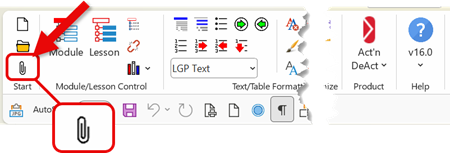
On the LeaderGuide Pro ribbon, click Attach.
Step 3: Complete the Template Specifications
The LeaderGuide Pro Template Specifications dialog box appears.
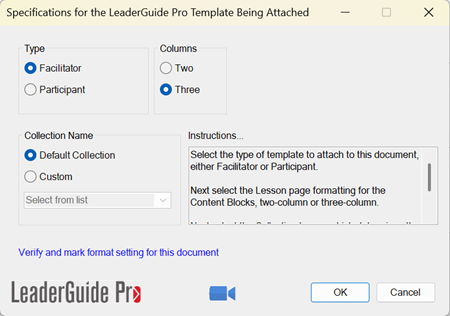
Complete the following options:
Select the Guide Type
Choose one of the following:
-
Facilitator Guide
-
Participant Guide
Select the Column Structure
Choose the layout that best matches your training requirements:
-
Two-Column Format
- Three-Column Format
Select the Collection
Choose the collection that should be applied to the document:
-
Select your preferred collection, or
-
Choose Custom and select a collection from the drop-down list
Step 4: Click OK
After making your selections, click OK.
LeaderGuide Pro will attach the selected template structure to the document.
Step 5: Block Icons Dialog Box
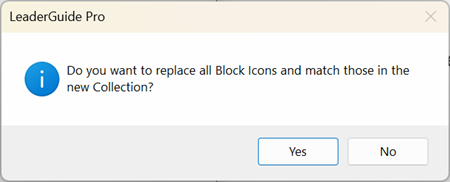
You will be prompted if you want to replace Block Icons.
Choose No.
Currently, you do not have any content block icons in this document.
Step 6: Action Completed Successfully
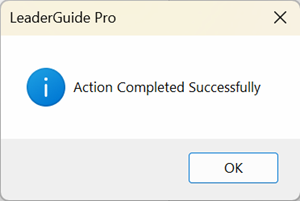
Once the attach process is complete, the Action Completed Successfully dialog box appears.
Choose OK.
Update Existing Styles
After attaching the template, review the document's formatting and update existing Word styles to the appropriate LeaderGuide Pro styles.
Common example:
| Existing Style | Recommended LeaderGuide Pro Style |
|---|---|
| Normal | LGP Text |
| Heading 1 | LGP Module Name |
| Heading 2 | LGP Lesson Name |
Applying the proper LeaderGuide Pro styles ensures that content behaves correctly when using LeaderGuide Pro features and maintains consistent formatting throughout the guidebook.
What Happens Next?
Once the document has been attached, you can begin using LeaderGuide Pro functionality within the document.
You now have the ability to:
-
Insert Modules
-
Insert Lessons
-
Add Content Blocks
-
Use LeaderGuide Pro page structures
-
Leverage collection-based design elements and formatting
-
Use all of LeaderGuide Pro features
Important: Creating Front Matter
Attaching a document gives you the ability to work with content sections such as:
-
Modules and Lessons, or
-
Lessons only
However, the attach process does not automatically create the front matter typically found in a complete guidebook.
To generate items such as:
-
Cover Page
-
Introductory Pages
-
Table of Contents
-
Training-at-a-Glance
-
Other Guidebook Front Matter
You need to run the Extract feature after preparing your content.
The Extract feature can generate these guidebook components and help create a fully structured LeaderGuide Pro document.
| Tip: For best results, organize and format your content first, then run Extract to create the complete guidebook structure. |
Best Practices
-
Review and update styles immediately after attaching the document.
-
Use LeaderGuide Pro styles instead of standard Word styles whenever possible.
-
Verify that headings, body text, and instructional content use the correct LeaderGuide Pro formatting.
-
Build modules and lessons before running Extract.
-
Preview the generated guidebook structure after extraction to ensure everything appears as expected.