


Troubleshooting
Restore the LeaderGuide Pro Ribbon in Microsoft Word
Troubleshoot a missing LeaderGuide Pro ribbon in Microsoft Word. Follow these steps to enable inactive or disabled add-ins.

Overview
If the LeaderGuide Pro tab is missing from the Microsoft Word ribbon, one or both of the required LeaderGuide Pro add-ins may have been marked as Inactive or Disabled by Microsoft Word.
LeaderGuide Pro uses two Microsoft Word COM add-ins:
-
LeaderGuide Pro
-
Add-Ins Manager
Both add-ins must be enabled for LeaderGuide Pro to function correctly. If either add-in is inactive or disabled, the LeaderGuide Pro ribbon may not appear or may not function as expected.
When to Use This Feature
Use these instructions if:
The LeaderGuide Pro tab is missing from the Word ribbon.
-
LeaderGuide Pro was previously available but no longer appears.
-
You recently updated Microsoft Office or Windows.
-
An error message indicates that the add-in was disabled.
-
LeaderGuide Pro appears in the list of Word add-ins but is not loading.
Before You Begin
Verify that:
-
Microsoft Word is closed and reopened after any updates.
-
LeaderGuide Pro is installed on your computer.
-
You have permission to make changes to Microsoft Office add-ins.
- Both the LeaderGuide Pro and Add-Ins Manager add-ins appear in Microsoft Word's add-in lists.
Scenario 1: LeaderGuide Pro Is Listed as an Inactive Add-In
Step 1: Open Word Options
-
Open Microsoft Word.
-
Click File.
-
Click Options.
-
Select Add-ins from the left navigation pane.
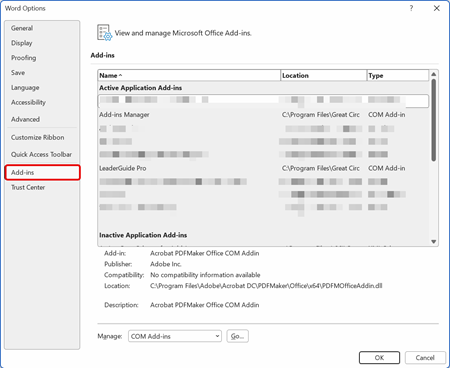
Step 2: Locate the Inactive Add-In
Review the Inactive Application Add-ins section.
Look for LeaderGuide Pro or Add-ins Manager in the list.
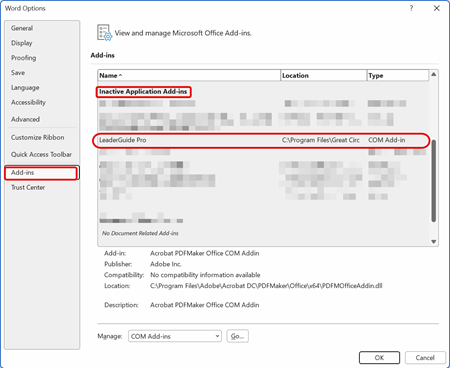
Step 3: Enable the Add-In
-
At the bottom of the window, locate the Manage drop-down.
-
Select COM Add-ins.
-
Click Go.
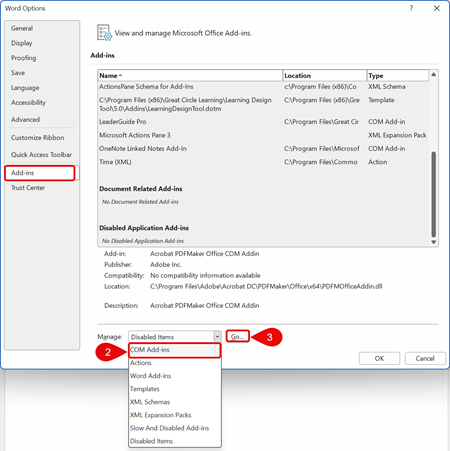
Step 4: Activate the Add-ins
-
Select the checkbox next to LeaderGuide Pro and/or
-
Select the checkbox next to Add-ins Manager
-
Click OK.
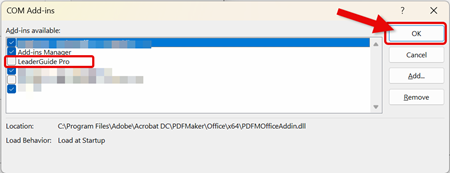
Expected Result
The LeaderGuide Pro tab should appear on the Microsoft Word ribbon.
If it does not appear immediately, close and reopen Word.
| Important: Both LeaderGuide Pro and Add-Ins Manager must be enabled in Com Add-ins. |
Scenario 2: LeaderGuide Pro Is Listed as a Disabled Add-In
Step 1: Open Word Options
-
Open Microsoft Word.
-
Click File.
-
Click Options.
-
Select Add-ins.
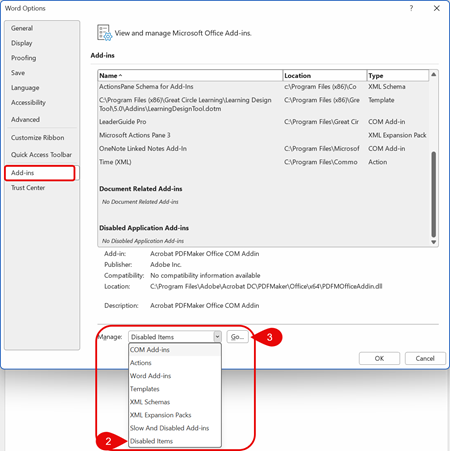
Step 2: Open the Disabled Items List
-
At the bottom of the window, locate the Manage drop-down.
-
Select Disabled Items.
-
Click Go.
Step 3: Re-Enable the Disabled Add-ins
-
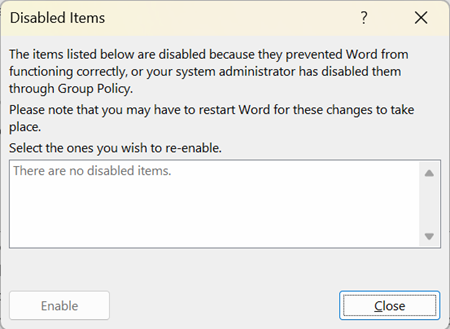
Select LeaderGuide Pro if it appears in the Disabled Items list.
-
Click Enable.
-
Repeat the process for Add-Ins Manager if it is also listed.
-
Click Close.
Step 4: Activate the COM Add-Ins
After enabling the item:
-
Return to the Manage dropdown.
-
Select COM Add-ins.
-
Click Go.
-
Verify that both add-ins are checked.
-
LeaderGuide Pro
-
Add-ins Manager
-
-
Click OK.
Step 5: Restart Microsoft Word
Close Microsoft Word and reopen it.
The LeaderGuide Pro tab should now appear on the ribbon.

Troubleshooting
LeaderGuide Pro or Add-ins Manager Is Not Listed in Inactive or Disabled Add-Ins
If either add-in does not appear in either list:
-
Open Control Panel.
-
Select Programs and Features.
-
Verify that LeaderGuide Pro is installed.
-
If it is not installed, reinstall the software.
The Add-In Will Not Stay Enabled
If LeaderGuide Pro becomes disabled again after reopening Word:
-
Verify that Microsoft Word is up to date.
-
Confirm that you have local administrator rights if required by your organization.
-
Repair your Microsoft Office installation.
-
Contact your IT department if add-ins are managed through corporate policies.
Additional Information
Microsoft Word categorizes add-ins in several ways:
-
Active Application Add-ins – Currently loaded and running.
-
Inactive Application Add-ins – Installed but not currently loaded.
-
Disabled Application Add-ins – Automatically disabled by Word and must be re-enabled before use.
If the LeaderGuide Pro ribbon disappears unexpectedly, checking the Inactive Application Add-ins and Disabled Application Add-ins lists is typically the first troubleshooting step.